
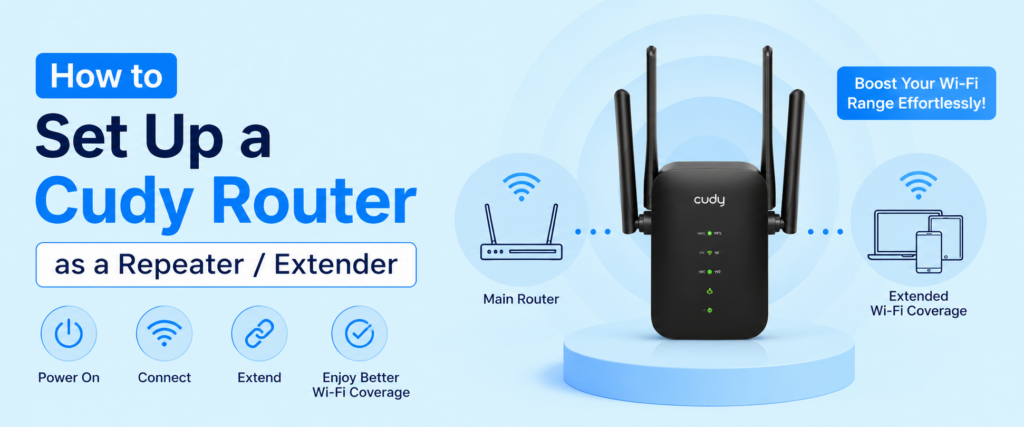
To use Cudy router repeater mode, log in to cudy.net or 192.168.10.1, open Quick Setup, select Wireless Extender, connect to your existing WiFi, enter the password and save the settings.
If you want the best speed and stability, use your Cudy router as an access point with an Ethernet cable instead of wireless repeater mode.
Weak WiFi is frustrating, right? You may get full signal in the living room but the bedroom, upstairs or office gets almost nothing.
Videos buffer. Calls drop. Smart TVs refuse to stream.
The good news is that you don’t always need to buy a new WiFi extender. Many Cudy routers already include Cudy router repeater mode, which allows them to receive your existing WiFi signal and broadcast it again to cover dead zones.
I have used this setup several times. In one apartment, the router stayed in the living room because of the fiber connection. The bedroom received only one signal bar. After switching an old Cudy router to repeater mode and placing it halfway down the hallway, the signal became strong enough for video calls and 4K streaming.
This guide explains everything in simple steps.
You’ll also learn:
- how to set up Cudy router as a repeater / extender
- Cudy WiFi extender setup
- using Cudy router as access point
- Cudy router extender mode setup
- when to choose Cudy WISP mode
- how to fix common connection problems
Repeater, Extender and Access Point — What’s the Difference?
Many people think these are the same. They are not. Choosing the correct mode gives better speed and fewer problems.
|
Mode |
Connection to Main Router |
Speed |
Best For |
|
Repeater / Extender |
Wireless |
Good |
Extending WiFi without cables |
|
Access Point |
Ethernet cable |
Excellent |
Maximum speed and stability |
|
WISP |
Wireless bridge |
Better in some difficult networks |
Hotels, unstable WiFi, ISP wireless connections |
Wireless Extender / Repeater Mode (Connects to Host WiFi Wirelessly)
This is the most common option. The Cudy router connects to your existing WiFi without any cable. Then it broadcasts a stronger signal to nearby devices.
Choose this if:
- Running cables is difficult
- You want quick installation
- You need better WiFi in another room
- This is the standard cudy router repeater mode.
Access Point Mode (Connects via Ethernet Cable — Better Performance)
If you can run an Ethernet cable between your routers, this is usually the better choice. Instead of repeating WiFi wirelessly, the Cudy router receives internet directly through the cable.
Benefits include:
- Faster speeds
- Lower latency
- More stable gaming
- Better video conferencing
- Stronger performance for many connected devices
This is why many IT professionals recommend using a Cudy router as access point whenever possible.
WISP Mode (For Repeaters That Keep Dropping — Alternate Wireless Bridge Method)
Sometimes standard repeater mode disconnects often. This usually happens when:
- the main WiFi signal is weak
- the ISP uses wireless internet
- the network has unusual settings
In those situations, Cudy WISP mode often provides a more reliable connection. Think of WISP as another way for the router to receive internet wirelessly while creating its own local network.
Before You Start
Preparation saves time. Before starting your Cudy WiFi extender setup, collect everything you need.
What You’ll Need
|
Item |
Required? |
Purpose |
|
Main WiFi network |
Yes |
Internet source |
|
WiFi password |
Yes |
Connecting to host network |
|
Cudy router |
Yes |
Device being configured |
|
Ethernet cable |
Optional |
Needed only for AP mode |
|
Laptop or phone |
Yes |
Configuration |
How to Log into Your Cudy Router’s Web Interface
First connect your computer or phone to the Cudy router. Open your browser.
Visit:
- http://cudy.net
- or 192.168.10.1
This opens the login page. Enter your administrator password.
If you have never configured the router before, complete the initial Cudy router setup first. If you forgot the password, check our guide on Cudy default password. Before changing operating modes, update the firmware.
New firmware fixes:
- WiFi bugs
- stability issues
- security problems
- compatibility improvements
Open:
- System Tools → Firmware Upgrade
- Install the latest firmware if available.
A Cudy router firmware update often solves connection issues before they even appear.
How to Set Up Cudy Router Repeater / Extender Mode (Wireless)
Now let’s configure Cudy router repeater mode. The whole process usually takes about five minutes.
Step 1 — Access Quick Setup and Choose “Wireless Extender”
Log in to cudy.net. Open Quick Setup.
Select:
- Wireless Extender
- Click Next.
This tells the router that it will extend another WiFi network.
Quick Setup page.
Highlight
Wireless Extender
Step 2 — Set Your Time Zone
Choose your correct country and time zone. Many people skip this step. I always recommend setting it correctly. Accurate time helps with:
- scheduled reboot
- logs
- parental controls
- firmware updates
Click Next.
Step 3 — Select the Host Network to Extend
The router now scans nearby WiFi networks. Select your main WiFi.
Double-check:
- Network name
- Signal strength
- Frequency (2.4GHz or 5GHz)
If possible, choose the stronger signal.
Step 4 — Enter the Host Network’s WiFi Password
- Carefully enter the password. One incorrect character will prevent connection. If the router cannot connect later, this is usually the first thing to verify.
Step 5 — Customize Your New SSID and Password (or Keep It Matching the Host)
Now choose the WiFi name. You have two options.
Option 1
Use the same WiFi name.
Advantages:
- devices switch automatically
- simpler for families
Option 2
Use a different WiFi name.
Example:
- HomeWiFi
- HomeWiFi-Ext
I personally prefer adding “-Ext” during testing. It makes it easy to confirm that devices are really connected to the extender. After everything works well, you can rename it to match the main network if you prefer.
Step 6 — Save & Apply, Then Reconnect Your Devices
- Click: Save
- Then: Apply
- Wait several minutes.
- The router will reboot.
Reconnect your phone or computer to the extended WiFi. Run a speed test to check internet access. Your cudy router extender mode setup is complete.
How to Set Up Cudy Router as an Access Point
Using a Cudy router as access point gives the best performance.
Step 1 — Connect the Cudy Router to Your Main Router via Ethernet
Connect an Ethernet cable from:
- LAN port of main router
to
- WAN port of Cudy router.
Some models may recommend LAN-to-LAN. Check your router manual if needed.
Step 2 — Choose “Wireless Access Point” in Quick Setup
Open Quick Setup.
Select:
- Wireless Access Point
- Click Next.
Step 3 — Confirm the Hardware Connection
- The router checks whether the Ethernet cable is linked. If not, reconnect the cable. Make sure the cable connects firmly into both ports.
Step 4 — Set Your Wireless Network Name and Password
Choose:
- WiFi name
- WiFi password
You may use the same credentials as your main router for seamless roaming.
Step 5 — Save & Apply and Wait for Reboot
- Click Save. Wait until reboot finishes.
- Connect your devices.
Enjoy stronger and faster WiFi.
Using WISP Mode as an Alternative (For Unstable Repeater Connections)
Sometimes repeater mode works but disconnects several times a day. In that situation, try Cudy WISP mode.
When to Use WISP Mode Instead of Standard Extender Mode
Choose WISP if:
- repeater disconnects frequently
- ISP provides wireless internet
- hotel WiFi requires login
- outdoor wireless internet
- weak signal between buildings
In my experience, WISP solved random disconnects in a small guest house where the internet came from an outdoor wireless antenna.
Where to Find It
Go to:
- General Settings → WISP
- Follow the wizard.
- Choose your source WiFi.
- Enter the password.
- Save the configuration.
Cudy WiFi Extender Setup via Mobile App
Some Cudy models support app configuration. The interface is slightly different. The setup is still simple.
WPS Button Quick-Connect Method
If both routers support WPS:
- Press WPS on the main router.
- Within two minutes, press WPS on the Cudy router.
- Wait for pairing.
- Check if the extender receives internet.
This is the fastest Cudy WiFi extender setup method.
App-Based Configuration Steps
Open the Cudy app. Connect to your router.
Choose Quick Setup
Select:
- Wireless Extender
- Choose your host WiFi.
- Enter the password.
- Save.
- Wait for reboot.
Troubleshooting
Most setup problems are easy to solve. Here are the most common ones.
Devices Can’t Find or Connect to the Extended WiFi Signal
Possible causes:
|
Problem |
Solution |
|
Router too far away |
Move it closer to the main router |
|
Hidden SSID |
Enable WiFi broadcasting |
|
Wrong password |
Re-enter password |
|
Weak signal |
Reposition extender |
Connected but No Internet Access
Usually caused by:
- incorrect WiFi password
- weak signal
- ISP outage
- router not receiving IP address
Try restarting:
- Main router
- Cudy router
- Then reconnect.
This is the most common Cudy extender no internet fix.
Can’t Log Back into the Router After Setup (IP Address Changed)
Many users think the router is broken. Actually, the IP address usually changes after switching operating modes. Try opening:
- cudy.net
If that does not work, check your router list in the main router’s DHCP client table to find the new IP address.
Frequent Disconnects — Firmware Update and MAC Repeater Fix
If your extender disconnects often:
- install the latest firmware
- move the router closer
- reduce obstacles
- switch WiFi channels
- try WISP mode
- enable MAC Repeater if your model supports it
A recent Cudy router firmware update can also improve wireless stability.
How to Factory Reset If Setup Fails
If nothing works:
- Keep router powered on.
- Press Reset.
- Hold for about 10 seconds.
- Wait for reboot.
- The router returns to factory settings.
- You can start the setup again.
Repeater vs Access Point vs WISP — Comparison Table
|
Feature |
Repeater |
Access Point |
WISP |
|
Connection |
Wireless |
Ethernet |
Wireless |
|
Setup Difficulty |
Easy |
Easy |
Moderate |
|
Internet Speed |
Medium |
Highest |
Good |
|
Stability |
Good |
Excellent |
Very Good |
|
Best For |
Home dead zones |
Offices and gaming |
Wireless ISP or unstable repeater connections |
Frequently Asked Questions
What’s the difference between extender mode and access point mode on Cudy routers?
Extender mode connects wirelessly to your existing WiFi and rebroadcasts the signal. Access Point mode uses an Ethernet cable to receive internet from the main router, offering faster speeds, lower latency and a more stable connection for streaming, gaming and multiple devices.
Can I use two Cudy routers to build a mesh network?
Only if both routers support Cudy’s compatible Mesh or Mesh-capable firmware. Otherwise, you can still use one router as a repeater or access point, but devices may not roam as smoothly as they would on a true mesh system.
Why can’t I access my Cudy router’s IP address after setup?
After changing the operating mode, the router often receives a new IP address from the main router. Try logging in through cudy.net first. If that doesn’t work, check the DHCP client list on your primary router to find the router’s current IP address.
Does Cudy extender mode support 5GHz?
Yes, many modern Cudy routers support extending both 2.4GHz and 5GHz networks. However, support depends on your specific model. Dual-band models generally provide better performance and allow you to extend faster 5GHz WiFi when available.
Final Thoughts
Using Cudy router repeater mode is one of the easiest ways to eliminate WiFi dead zones without buying another networking device. The setup takes only a few minutes with cudy.net using the built-in Cudy router Quick Setup wizard.
If you simply need better coverage in another room, Wireless Extender mode is an excellent choice. If you can run an Ethernet cable, using your Cudy router as access point delivers noticeably better speed, lower latency and greater reliability. When wireless connections remain unstable, Cudy WISP mode is a practical alternative that often resolves repeated disconnects.